
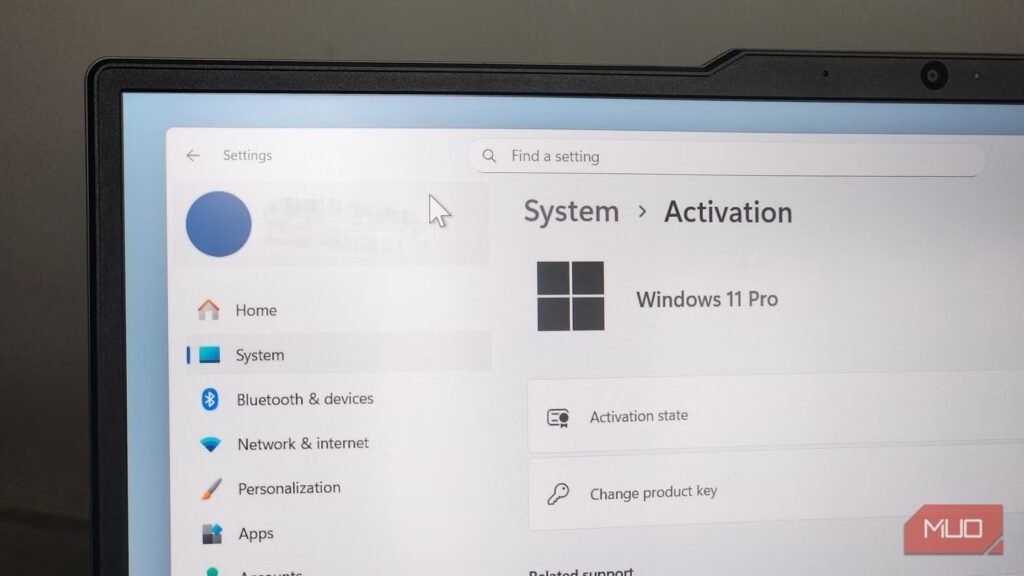
Windows 11 Home is perfectly fine for most people. But there’s a reason Windows 11 Pro exists and why it costs more. It unlocks features that completely change the way you use and control your PC.
Instead of being limited to simple settings, the Pro version gives you Group Policy Editor, which lets you fine-tune how Windows behaves at a deeper level. You get virtualization tools like Hyper-V and Windows Sandbox, which allow you to test software and run virtual machines without risking your system. And when you add advanced Remote Desktop features on top, and Windows 11 Pro becomes far more than an upgrade.
Group Policy Editor
Fine-tune Windows like a pro

The Windows Settings app already gives you pretty much all the options you need. You can change themes, manage updates, control privacy, and handle basic security settings. But when you want to do something advanced, Windows Home quickly hits a wall.
For instance, if you want to block other users from installing new software, stop Windows from installing bloatware during an update, or disable USB ports for security, your only option is the Registry Editor. Yes, it works, but it’s also risky. One wrong change can break features, or worse, stop Windows from booting.
On Windows 11 Pro, Group Policy Editor gives you a direct and easier way to control how your system behaves. Technically, this tool is designed for IT admins who need to manage multiple PCs and enforce certain restrictions, but it’s just as useful for anyone who wants more control over their system. Instead of relying on random registry tweaks from the internet, you get a clean interface that tells you exactly what you’re doing.
With Group Policy Editor, you can disable forced Windows updates, block Microsoft Store apps, hide certain Control Panel options, and lock down the Start menu. It also gives you access to many other controls that simply don’t exist in Home. And all of this is done with simple toggles and policies.
Experiment without consequences
Another perk of Windows 11 Pro is the built-in virtual tools it offers, and one of the most useful ones is Hyper-V. It’s Microsoft’s own virtual machine platform that lets you run entire operating systems inside Windows. You can install another version of Windows, try Linux, or create a testing environment without touching your main setup. It’s great for experimenting or learning.
Yes, there are also third-party tools that let you do this in Windows Home. But since Hyper-V is deeply integrated into Windows, it’s fast, uses hardware acceleration, and works smoothly without extra layers of software fighting for resources.
Windows Sandbox is another feature that works in a similar way. It creates a temporary, clean version of Windows inside your PC. This can be extremely useful if you want to open suspicious attachments, try unknown apps, or test settings without affecting your actual PC.
Once you close Sandbox, everything inside it is completely wiped, so you don’t have to worry about uninstalling apps, cleaning up leftover files, or undoing any settings. It’s like having a disposable PC inside your actual one.
This is different from running a virtual machine because the Sandbox operates more like a process within your system, which means you get better performance and almost instant startup. Once you’ve installed Windows Sandbox, you can open it using the search menu.
Inside you’ll find File Explorer, Control Panel, Notepad, and Edge. You can even copy files on your main PC and paste them directly into the Sandbox environment.

Security Settings in Windows You’re Not Using (and Hackers Hope You Don’t Find)
Uncover the hidden Windows security gems that hackers dread you’ll discover.
Advanced remote desktop
Take your desktop with you

Windows Home includes a basic Remote Desktop client, which lets you connect to other PCs. But you can’t use it to connect to your own PC. That feature is locked behind Windows 11 Pro, and for some people, it’s the single biggest reason to upgrade.
With Remote Desktop in Windows 11 Pro, you can access your full desktop from another computer, laptop, or even a phone. Unlike screen sharing, you get full control of your system. This means you can open apps and move files as if you were sitting right in front of your PC.
Anyone who needs access to their home PC while traveling, this feature is a lifesaver. And since this is a built-in tool, you don’t have to worry about security, performance, or paying a subscription.
To get started, you first need to enable the Remote Desktop feature from the Settings app. Once done, open the Remote Desktop Connection tool on any other PC, type the name of your computer, select the user account you want to use, and hit Connect. Once you enter the credentials, you’re all set. You can then access your files, use your apps, and manage your entire PC remotely.
Windows 11 Pro is not for everyone. In fact, for most people, it doesn’t make sense to pay extra. But if you’re an advanced user, the above features can be well worth it. Also, while Windows 11 Pro officially retails for $199, you’ll often find special deals and promotions that bring the price way down. I was able to grab mine for just $10, which made the upgrade a no-brainer.